How to connect Claude to Microsoft Clarity
To The Sky ·
To connect Claude to Microsoft Clarity, create an API token for your project, then add Microsoft's official connector to Claude Code with the command below. We use this setup at To The Sky to review Clarity data and choose the recordings worth watching. All the steps are on this page, and the PDF remains available as an optional download.
 7 pages8 prompts
What's inside the guide
- ✓What you need (Clarity is free)
- ✓The 2 setup steps: the token and the connector
- ✓8 questions we ask Claude
- ✓What the numbers don't tell you
- ✓Common traps and how to avoid them
How Claude sets up a conversion
- 1You ask what happens on a page
- 2Claude reads your Clarity data and recordings
- 3It finds where people get stuck
- 4It picks a few sessions to watch
- 5You watch and decide what to change
| Item | Why | Notes |
|---|---|---|
| Microsoft Clarity installed on your site | Provides the data Claude reads. | Clarity is free. Select the project for the site you want to review. |
| Claude Code | This is where you add the Clarity connector. | Use the terminal or the Code tab of the Claude desktop app. |
| Node.js | Required for the setup in this guide. | It needs to be installed. |
| A Clarity API token | Connects Claude to one project's data. | One token per project. Clarity displays it only once. |
| About 10 minutes | For the two setup steps. | Create the token and add the connector in the same sitting. |
Microsoft Clarity installed on your site
- Why
- Provides the data Claude reads.
- Notes
- Clarity is free. Select the project for the site you want to review.
Claude Code
- Why
- This is where you add the Clarity connector.
- Notes
- Use the terminal or the Code tab of the Claude desktop app.
Node.js
- Why
- Required for the setup in this guide.
- Notes
- It needs to be installed.
A Clarity API token
- Why
- Connects Claude to one project's data.
- Notes
- One token per project. Clarity displays it only once.
About 10 minutes
- Why
- For the two setup steps.
- Notes
- Create the token and add the connector in the same sitting.
What you need
What you get when you connect Claude to Clarity
At To The Sky, we use this connection to stop watching recordings one by one without a clear question. Claude helps us identify problems in Clarity data and choose the sessions worth watching. We can start with a page, a behaviour or a problem, then ask for the recordings behind the answer.
Once connected, we can ask why people leave a page and where they stop scrolling. We can check where they rage-click, where they click on things that do not work, and how many leave right after an ad click. Clarity calls those quick returns “quick backs”. These give us specific behaviours to investigate.
We also use the connection to check JavaScript errors and the browsers affected. For a shop, we can ask for sessions that almost ended in a sale. That gives us a reason to open a recording instead of working through sessions without knowing what we are looking for.
The connection uses the Clarity MCP server, Microsoft's official, free connector. It reads Clarity data. It cannot change your website or your Clarity settings. We use it to help investigate what happens on a page. For the full picture, read our guide to Claude for marketing.
What we prepare before setup
We need Microsoft Clarity installed on the website, Claude Code and Node.js installed. For Claude Code, we can use the terminal or the Code tab of the Claude desktop app. The setup in this guide takes about 10 minutes and has two parts: create the token in Clarity, then add the connector to Claude.
Before starting, we choose the site we want to review. A Clarity token belongs to one project. If you manage several sites, create one token for each and keep them separate. We also use a separate connector with a clear name for each site, so the project and connector do not get mixed up.
We prepare a private settings file on our computer for the token. We never paste it into a chat, a document or a shared folder. Clarity displays it only once, so we copy it as soon as it is generated and keep it in that private file.
We complete both setup steps in the same sitting. Generating a token alone does not connect Claude to Clarity.
Step 1: create an API token in Microsoft Clarity
We start in Clarity, inside the project for the site we want to check. The token we create here is the one we will use in the Claude command.
1. Open clarity.microsoft.com and choose your project.
2. Go to Settings → Data export.
3. Click Generate new API token and give it a name, for example “Claude”.
4. Copy the token immediately. Clarity shows it only once.
5. Keep the token in a private settings file on your computer.
Do not treat tokens from different sites as interchangeable. One token means one project. If you work with several projects, create a token for each site and keep them apart.
If you closed the token display before copying it, or you lost the token, generate a new one. Then continue to the next step. At this point you have the token, but you still need to add the connector to Claude.
Step 2: add the Clarity MCP server to Claude Code
Once we have the token, we move to Claude Code. This is the step that actually adds the connector. To set up the connection, continue by adding the connector after generating the token in Clarity.
1. Open Claude Code in the terminal or in the Code tab of the Claude desktop app.
2. In the command below, replace [your token] with the token for your selected project.
3. Run the command to add the connector.
claude mcp add clarity -- npx -y @microsoft/clarity-mcp-server --clarity_api_token=[your token]
4. Restart Claude before testing the connection.
For several sites, we add one connector per site and give each a clear name, such as clarity-shopname. We keep the same rule on both sides: one token per site and one connector per site.
We do not skip the restart. Claude loads a new connector after a restart or in a new chat. If it does not appear in the current conversation, restart Claude or open a new chat before checking the setup.
Test the connection with a rage-click question
After restarting, we use a specific question about recent data. This is the test prompt from our setup:
“Show me the rage clicks on mobile for the last 3 days.”
The question names the behaviour, device and period. It also stays within the connector's window of the last 1 to 3 days. We do not start the test by asking about last month, because older periods belong in the Clarity dashboard.
If Claude says it is not connected, we check whether we completed step 2. Creating the token in Clarity does not automatically add it to Claude. If the new connector is missing, we restart Claude or open a new chat.
Once we get a finding, we ask for the sessions behind it. We use the answer as a starting point for watching what people did on the page. A number alone is not enough for us to decide what to change.
The questions and prompts we use
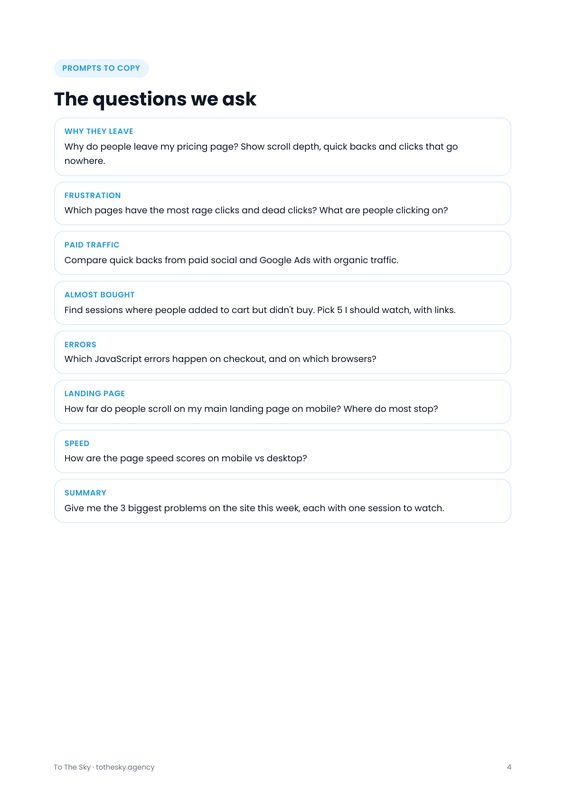
At To The Sky, we start with the question we need to answer. Sometimes we are reviewing a pricing page. Other times we are looking at paid traffic, checkout or mobile behaviour. These are the prompts we use to move from a question to relevant data and sessions.
Why people leave:
“Why do people leave my pricing page? Show scroll depth, quick backs and clicks that go nowhere.”
Frustration:
“Which pages have the most rage clicks and dead clicks? What are people clicking on?”
Paid traffic:
“Compare quick backs from paid social and Google Ads with organic traffic.”
Almost bought:
“Find sessions where people added to cart but didn't buy. Pick 5 I should watch, with links.”
Errors:
“Which JavaScript errors happen on checkout, and on which browsers?”
Landing page:
“How far do people scroll on my main landing page on mobile? Where do most stop?”
Speed:
“How are the page speed scores on mobile vs desktop?”
Summary:
“Give me the 3 biggest problems on the site this week, each with one session to watch.”
For that last prompt, we keep the available reporting window in mind. Saying “this week” does not give the connector access beyond the last 1 to 3 days. For an older period, we open the Clarity dashboard.
Common traps and how to avoid them
Save the token as soon as it is generated. Clarity shows it only once. If you lose it, generate a new one and keep it in a private settings file. Do not rely on being able to view the same token again later.
If Claude says it is not connected, check whether you added the token to Claude. Complete step 2 with the command on this page. Create the token and add the connector in the same sitting.
If the new connector does not appear, restart Claude or begin a new chat. Claude loads it after a restart or in a new chat. Then test again.
For data about last month, use the Clarity dashboard. The connector sees only the last few days. Check older periods in the dashboard.
Keep one token and one connector per site, with clear names. When you manage several projects, that separation helps you keep track of the site you are reviewing.
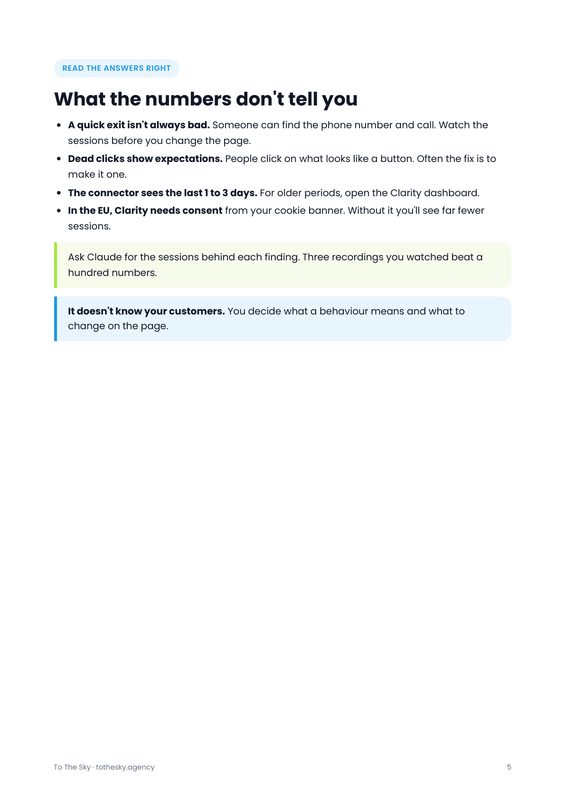
Check the consent integration through the cookie banner. In the EU, Clarity needs this consent. Without it, you will see far fewer sessions. Keep that condition in mind when interpreting the available data.
How we read the answers before changing a page
A quick exit is not automatically a problem. Someone may find the phone number and call. Watch the session to understand the context of the exit. That is why we watch the recordings before changing the page.
Dead clicks show expectations. If something looks like a button, people may click it. Often the fix is to make it a button. We use that signal to understand what a visitor expected to happen, then look at the sessions.
We ask for the sessions behind each finding. Three recordings we have watched are more useful to us than a hundred numbers without context. We want to see the behaviour that led to Claude's answer.
We know our customers' context. Claude helps us find behaviours and choose what to watch, and we decide what that behaviour means and what to change on the page. We take responsibility for those decisions when reviewing pages at To The Sky.
What the connector can read and what it cannot do
The Clarity MCP server reads dashboard metrics: dead clicks, rage clicks, quick backs, scroll depth, JavaScript errors and page speed. It can also read session recordings with filters and the Clarity documentation. Those are the sources we rely on when asking the questions above.
The connector is read-only. It cannot change the website or the Clarity settings. If a finding points to a useful change on a page, we decide how to implement it.
The time limit matters just as much: the connector sees the last 1 to 3 days. For older periods, we open the Clarity dashboard. Asking about last month does not change that limit.
Finally, behaviour data still needs interpretation. A quick exit may mean the visitor found what they needed. A dead click may show that an element looks interactive. We use Claude to find what deserves a closer look, watch the sessions, and decide what it means for that page.
How we made this guide: we started from our own work, in the accounts we manage and the tools we use. An AI assistant helped us with the draft and structure. Before publishing, we checked every figure, step and link against our own data and setup.
In short
We connect Claude to Microsoft Clarity in two steps: create a project token, then add the Clarity MCP server to Claude Code and restart Claude. We test with the mobile rage-click question, then ask for the sessions behind each finding. For data older than the last 1 to 3 days, we use the Clarity dashboard.
Get the free guide