How to connect Claude to Google Analytics 4
To The Sky ·
We connect Claude to Google Analytics 4 through Google Analytics MCP, Google's official connector, using Claude Code. We enable the APIs, authorize Google access, and add the connector, then ask questions about our GA4 property. Below is the setup we use at To The Sky; the PDF remains available as an optional download.
 7 pages8 prompts
What's inside the guide
- ✓What you need (read access to GA4 is enough)
- ✓The 3 setup steps: Google Cloud, sign-in, connect
- ✓8 questions we ask every week
- ✓Why GA4 and Google Ads don't match
- ✓Common traps and how to avoid them
How Claude sets up a conversion
- 1You ask a question about your data, in plain English
- 2Claude reads your GA4 property
- 3It builds the right report or funnel
- 4It tells you what it found and why it matters
- 5You check one number and decide
| Item | Why | Notes |
|---|---|---|
| Claude Code | This is where we connect Claude to GA4. | Use the terminal or the Code tab of the Claude desktop app. |
| Viewer access to the GA4 property | Allows the connector to read the property. | Read access is enough. |
| Python with pipx | The connector runs through pipx. | The run command is pipx run analytics-mcp. |
| Google Cloud CLI (gcloud) | Authorizes Google access through Application Default Credentials. | The login command uses the OAuth client JSON file. |
| About 30 minutes | Time for the initial setup. | We do this setup once. |
Claude Code
- Why
- This is where we connect Claude to GA4.
- Notes
- Use the terminal or the Code tab of the Claude desktop app.
Viewer access to the GA4 property
- Why
- Allows the connector to read the property.
- Notes
- Read access is enough.
Python with pipx
- Why
- The connector runs through pipx.
- Notes
- The run command is pipx run analytics-mcp.
Google Cloud CLI (gcloud)
- Why
- Authorizes Google access through Application Default Credentials.
- Notes
- The login command uses the OAuth client JSON file.
About 30 minutes
- Why
- Time for the initial setup.
- Notes
- We do this setup once.
What you need
What you get when you connect Claude to GA4
At To The Sky, we use this connection to ask questions about GA4 data in plain English. We ask about channels, funnels, and conversions, and Claude answers from our GA4 property. We start with the question we need answered, then ask for the report or comparison that helps us understand it.
We can check which channel brings first-time buyers and which channel closes the sale. We can ask Claude to build a funnel and show where people drop, compare GA4 conversions with Google Ads for the same days, or check traffic sources, including the Unassigned part. After changing a tag, we can also ask about realtime events.
The connection uses Google Analytics MCP, the official connector from Google. It is free and open source. It is also read-only: Claude reads and reports, but it cannot change anything in your property.
The connector can read account and property details, standard and custom reports, realtime, funnels, conversions, Google Ads links, custom dimensions, and annotations. That is the data access behind the questions we use below. For the full picture, read our guide to Claude for marketing.
What you need before you start
We use Claude Code, either in the terminal or in the Code tab of the Claude desktop app. That is the environment for the setup in this guide. We also need Python with pipx and the Google Cloud CLI, also called gcloud.
For the GA4 property, Viewer access is enough. When the Google sign-in window opens, we use the account that can see that property. Access to the property is what matters for the questions we want to ask after connecting.
We allow about 30 minutes for the initial setup. The process has three parts: prepare the Google Cloud project, authorize Google access, and add the connector to Claude. The JSON file we download in the first part is needed for the login command in the second part.
The table above is our preparation checklist. We have kept the full walkthrough on this page so you can follow the setup here. If you prefer a separate copy, the PDF is also available as an optional download.
Step 1: enable the APIs in Google Cloud
We start in a Google Cloud project. We do this configuration once. The project can have any name; it is where we enable the Analytics APIs and configure the OAuth client used for sign-in.
1. Go to console.cloud.google.com and create a project. Any name is fine.
2. Open APIs & Services → Library and enable Google Analytics Data API and Google Analytics Admin API.
3. Open OAuth consent screen and set it up for your own account.
4. In Credentials → Create credentials → OAuth client ID, choose Desktop app and download the JSON file.
5. Publish the consent screen to Production.
That last point matters for keeping the connection working. If you leave the consent screen in Testing, Google expires your access after 7 days and the connector stops working. We publish it to Production during setup.
For Analytics, read-only access is enough. The connector asks only for the analytics.readonly scope to read Analytics data. In the next step, we use the JSON file downloaded here in the gcloud login command. Keep it available before continuing.
Step 2: authorize your Google access
The connector uses Application Default Credentials. To sign in, we run the command below with the JSON file from Step 1. The command includes the analytics.readonly and cloud-platform scopes, exactly as in our setup.
1. Replace [your JSON file] in the command with the path to the JSON file downloaded in Step 1.
2. Run the command in your terminal.
gcloud auth application-default login --scopes https://www.googleapis.com/auth/analytics.readonly,https://www.googleapis.com/auth/cloud-platform --client-id-file=[your JSON file]
3. In the browser window that opens, sign in with the Google account that can see your GA4 property.
4. Approve access.
We use the account with access to the property we want to analyze. The JSON file from the first step goes into the command through the --client-id-file option. Sign-in and approval happen in the browser.
After this step, we move on to adding the connector to Claude. If you see “This app is blocked,” check the traps section: agency or Workspace accounts can block a personal OAuth app.
Step 3: add Google Analytics MCP to Claude
To add the connector, we follow the README of googleanalytics/google-analytics-mcp. That is the reference for the connector configuration. It runs with pipx and needs two settings: the path to the credentials file and the Google Cloud project ID.
1. Follow the README of googleanalytics/google-analytics-mcp to add the connector.
2. Use the connector's run command.
pipx run analytics-mcp
3. Set the path to your credentials file.
4. Set your Google Cloud project ID.
5. Restart Claude.
We include the restart as part of setup. Claude only loads the new connector after a restart, so we test the connection after that step. If the new connector is not showing up, restarting is the check described in our traps list as well.
The two settings above are part of the connector configuration. Once we have supplied them following the README and restarted Claude, we move on to a simple question about GA4 accounts and properties.
Test the connection to your GA4 property
Our first test is a simple listing request. We start with GA4 accounts and properties before asking for channel analysis, a funnel, or a comparison with Google Ads.
1. After restarting Claude, send the test prompt.
“List my GA4 accounts and properties.”
2. Review the accounts and properties in the answer before moving on to questions about the data.
This is the test we use after connecting. The connector can read account and property details, so we start with that information.
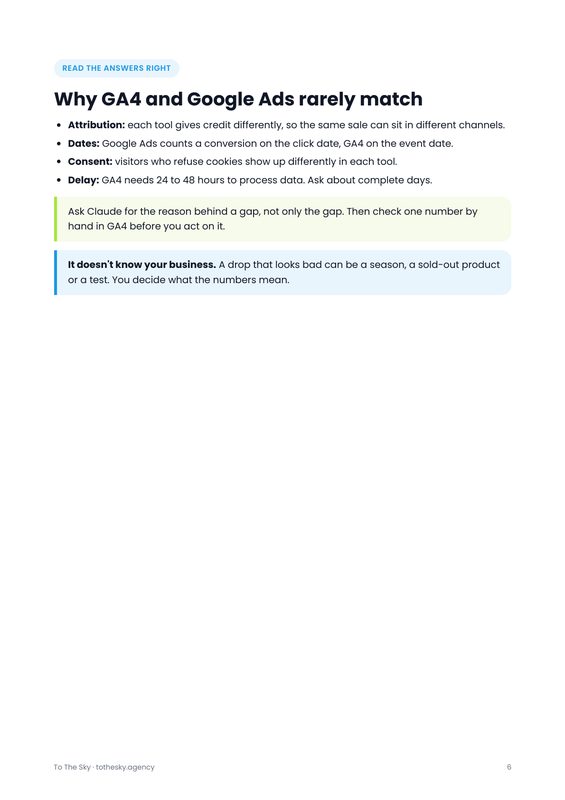
When we move on to performance questions, we ask about complete days. We do not use today's data for a comparison we want to act on. GA4 needs 24 to 48 hours to process data. A realtime check after changing a tag is a separate question, included in the prompts below.
The questions and prompts we use
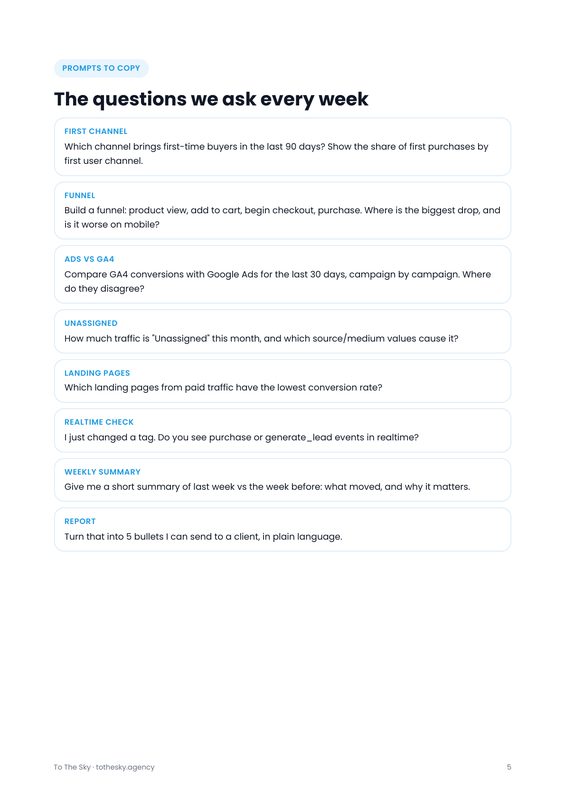
These are the questions we use at To The Sky. They cover first-time buyers, the steps toward a purchase, differences from Google Ads, and traffic source checks. Copy the question that fits the analysis you need.
For the channel bringing first-time buyers:
“Which channel brings first-time buyers in the last 90 days? Show the share of first purchases by first user channel.”
For a funnel:
“Build a funnel: product view, add to cart, begin checkout, purchase. Where is the biggest drop, and is it worse on mobile?”
For Google Ads versus GA4:
“Compare GA4 conversions with Google Ads for the last 30 days, campaign by campaign. Where do they disagree?”
For Unassigned traffic:
“How much traffic is "Unassigned" this month, and which source/medium values cause it?”
For landing pages:
“Which landing pages from paid traffic have the lowest conversion rate?”
For a realtime check:
“I just changed a tag. Do you see purchase or generate_lead events in realtime?”
For the weekly summary:
“Give me a short summary of last week vs the week before: what moved, and why it matters.”
For a client report:
“Turn that into 5 bullets I can send to a client, in plain language.”
We use the last request to turn the analysis into a summary we can send. Before acting on an answer, we check one number by hand in GA4.
Common traps and how to avoid them
For setup and interpreting answers, check access, the period you request data for, and how you compare GA4 with Google Ads.
1. If you see “This app is blocked,” an agency or Workspace account may be blocking a personal OAuth app. For many properties, use a service account and add it as Viewer in GA4.
2. Keep the consent screen in Production; otherwise, access expires after 7 days if the screen remains in Testing.
3. If the new connector is not showing up, restart Claude. It only loads the connector after a restart.
4. If the question is about today, switch to complete days. Today's data is not complete yet, and GA4 needs 24 to 48 hours to process data.
When comparing GA4 with Google Ads, also look at the reason for a gap. Attribution differs: each tool gives credit differently, so the same sale can sit in different channels.
Dates differ too. Google Ads counts a conversion on the click date, while GA4 counts it on the event date. Consent is another reason: visitors who refuse cookies show up differently in each tool.
Ask Claude for the reason behind a gap, not only the gap itself. The comparison is more useful when you also understand why the two tools show different results.
How we use the connection for data analysis
Google Analytics MCP is read-only. We use it to read data and request reports. After a tag change, we ask Claude to check the event data.
We bring the business context to the analysis. A drop can reflect seasonality, a sold-out product, or a test. The answer shows the change in the data, and we determine what that change means for the business.
We use the connection for data questions and reports, while the final interpretation stays with us.
How we made this guide: we started from our own work, in the accounts we manage and the tools we use. An AI assistant helped us with the draft and structure. Before publishing, we checked every figure, step and link against our own data and setup.
In short
We connect Claude to GA4 in three stages: configure Google Cloud, authorize access, and add Google Analytics MCP to Claude Code. After restarting, we test the connection by asking for our GA4 accounts and properties. Then we ask about complete days and check one number by hand before acting.
Get the free guide